
Room Participants
Managers have special controls to facilitate smooth estimation sessions. This page covers managing participants within a room. For organizational teams with persistent membership, see Teams.
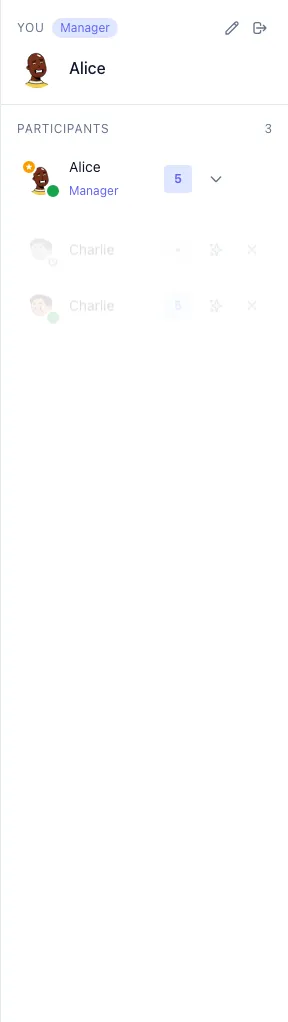
Manager
Section titled “Manager”- Start/stop voting rounds
- Reveal votes
- Change room settings
- Promote/demote other managers
- Kick participants

Participant
Section titled “Participant”- Vote on stories
- See revealed results
- Change their avatar and name
Managing Participants
Section titled “Managing Participants”Each participant row shows action buttons when you’re a manager:

Promoting to Manager
Section titled “Promoting to Manager”- Find the participant in the sidebar
- Click the sparkle/star icon (⭐)
- They now have manager controls
Demoting a Manager
Section titled “Demoting a Manager”- Click the down arrow icon next to their name
- They return to participant role
Kicking Participants
Section titled “Kicking Participants”- Click the X icon next to their name
- Confirm the action
- They’ll be removed and need to rejoin
Presence Indicators
Section titled “Presence Indicators”- Green dot - Online and active
- No dot - Offline or disconnected